Projects
Projects are for work that is bigger than one task. How to create one, the three ways to look at your work (list, board and calendar), and what the Why does this matter field is really for.
Updated 8 Aug 2026
Questions this answers
- When should I make something a project instead of a task?
- When it needs more than one task to finish: a launch, a website, a client delivery, getting your bookkeeping straight. Tasks live inside it, so your task list stays readable.
- How do I create a project in Thinker?
- On the Projects page, type a name in the New project box and press Create. You can also open any task, tap its project pill and choose Convert to project when it turns out bigger than you thought.
- What are the list, board and calendar views for?
- List is the accordion view for reorganising and seeing progress. Board gives you columns to drag cards between, grouped by due window, status or the Joy and Value badge. Calendar is a month grid of what is due when.
- What is the Why does this matter field for?
- It is the note you read when you have lost steam in week three, and it is context Thinker uses when it decides what to put on your day. Answer it properly.
A project is anything that needs more than one task to finish. A launch, a website, a client delivery, getting your bookkeeping straight. Tasks live inside it, so your task list stays readable.
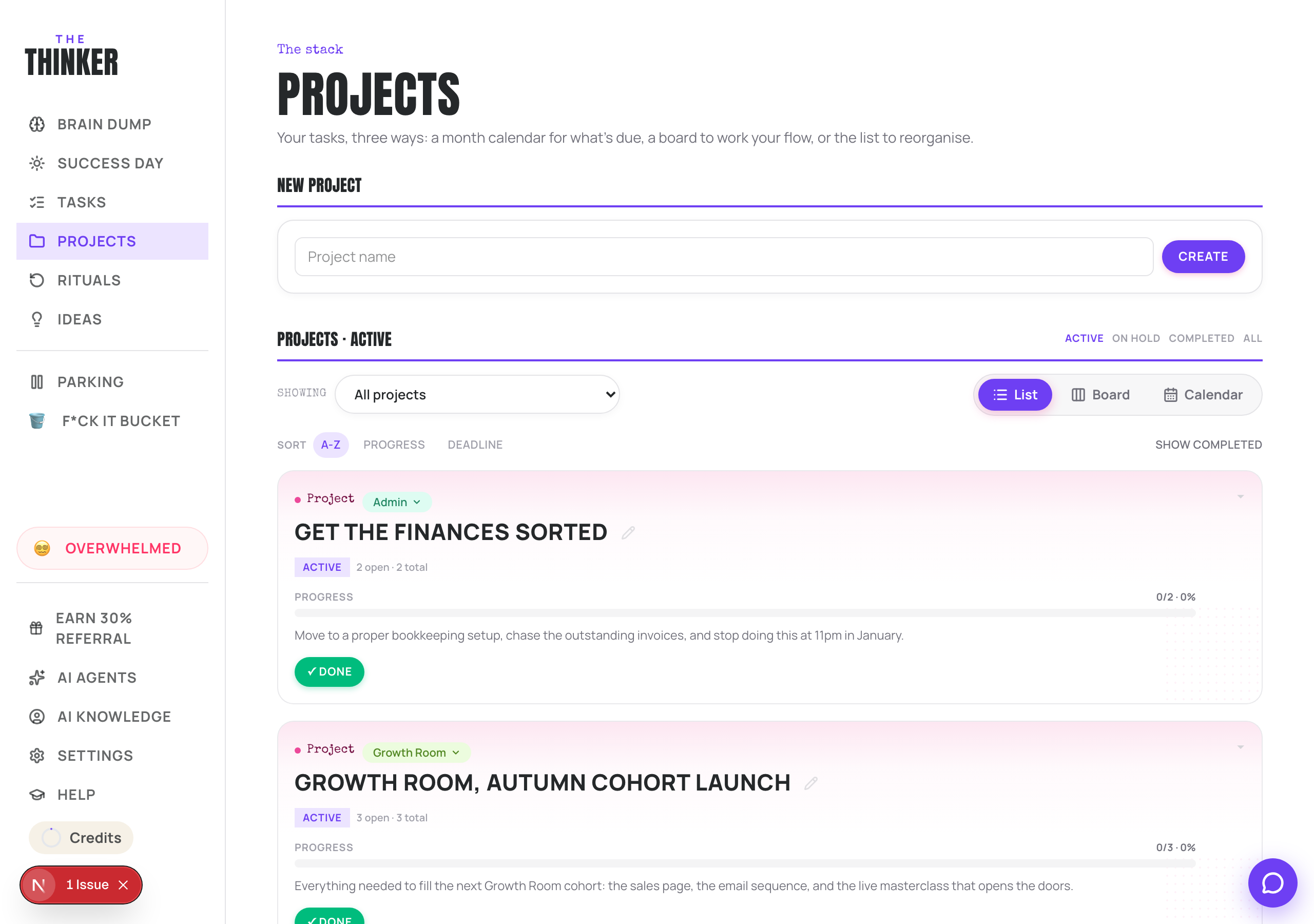
Creating one
On the Projects page, type a name in the New project box and press Create. That is it. You can fill in the rest later.
You can also turn a task into a project. Open the task, tap its project pill, and choose Convert to project. Useful for the ones that turn out to be much bigger than you thought.
Inside a project
Open a project card and you get its tasks, a quick-add box to put a new one straight into it, and a Details section with:
- What is this project?
- Why does this matter? Answer this one properly. It is the note you read when you have lost steam in week three, and it is context Thinker uses when it decides what to put on your day.
- A target date, which shows as a countdown on the project card.
Three ways to look at it
- List: the accordion view. Best for reorganising, and for seeing progress bars.
- Board: columns you drag cards between. Group by due window, by status, or by the Joy and Value badge. Dragging a card to another column changes that thing.
- Calendar: a month grid of what is due when, with project target dates marked. Drag a task onto a day to schedule it, or into the No date tray to clear it.
Keeping the list clean
- Done ticks the project off and moves it to Completed, with a satisfying burst.
- Park hides it from the active list but keeps everything. Good for the thing you will pick up next quarter.
- F*ck it bins it, recoverable from the bucket.
- Filter to Completed and you get an Empty me button. That one deletes for good, so it is the one to be careful with.
Moving tasks around
Drag a task card onto a project to move it there. Or open the task, tap its project pill, and pick a different project, Inbox for no project at all, or New project to create one on the spot.
More in Your work
Did that not answer it? Ask Thinker in your own words.
Ask a question