Tasks, and how they get prioritised
How to add a task, the one scoring question that matters and the time estimate, what the badge on each card is telling you, and how the weekly swipe deck keeps your list from turning into a graveyard.
Updated 8 Oct 2026
Questions this answers
- How do I add a task in Thinker?
- Type a title into the What needs doing box at the top of the Tasks page and press Add. Click into the box first if you also want a project, a due date, notes, links or to put it straight on today.
- Do I have to score whether a task moves my goal?
- No. You rate how much it lights you up and how long it takes. Thinker judges how much each task moves your goal when it builds your Success Day, and writes its reason under the title on the card.
- What do the badges on task cards mean?
- Lights you up means you rated it a lot or love it, good for pacing the day. Needs energy means it is scored but does not light you up much. New means it has not been scored yet.
- How do I tidy up a long task list?
- Switch the Tasks page from List to Stack and swipe through one card at a time: right to keep, left for the F*ck It Bucket, or Park in the middle. Half an hour on a Friday keeps a list you trust.
Adding a task
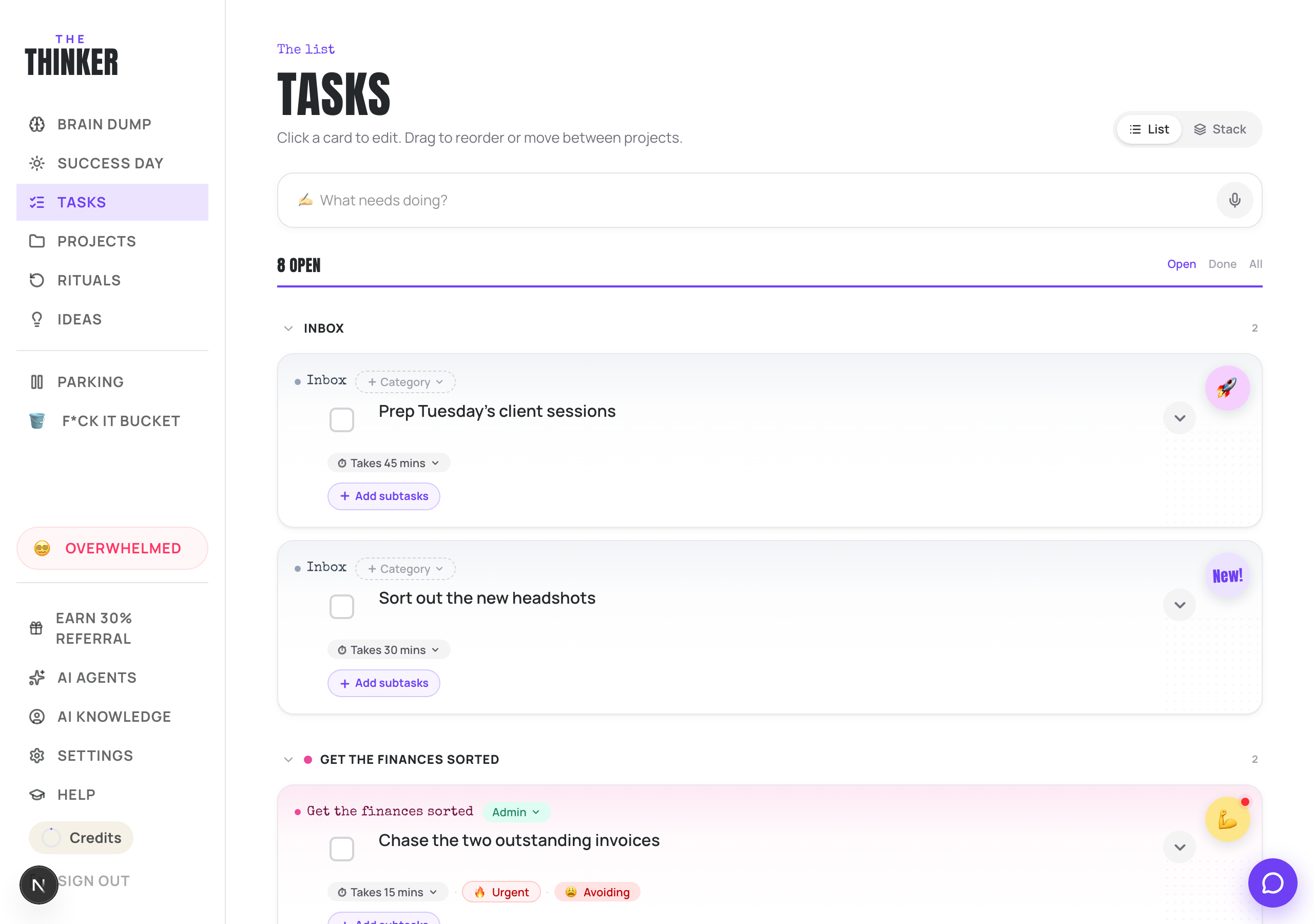
At the top of the Tasks page there is one quiet box: What needs doing? Type a title and press Add. That is all that is ever required.
Click into the box and it opens up so you can also set a project, a due date, notes, links, how much it lights you up, how long it takes, and a tick box to put it straight on today. Use as much or as little of that as you want.
The one question, and the time
Open a task and find Task Scoring. There is one question for you to answer, and one estimate:
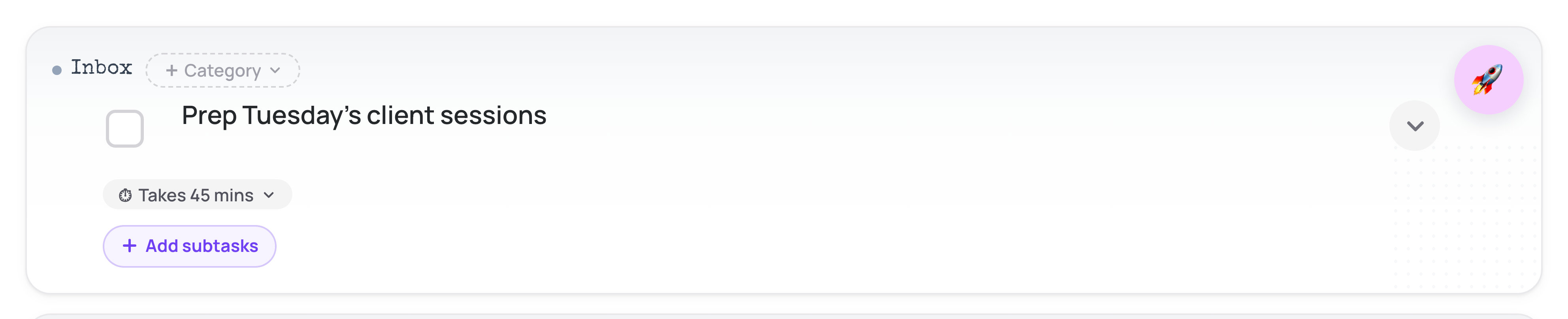
- Lights you up: how much you will enjoy doing this. Not really, a little, some, a lot, love it. Thinker uses it to pace your day so it is not wall-to-wall grind.
- Time needed: how long it realistically takes. This is what stops a day being planned as if everything takes ten minutes.
Let Thinker score it for you
Press Auto-score and it will suggest how much the task lights you up and how long to allow, based on what it knows about you and your real pace, and write you a line explaining why. It appears as Thinker Suggests. Everything stays yours to change afterwards. This costs a small number of credits.
The badge on each card
- Lights you up: you rated it a lot or love it. Good for pacing the day.
- Needs energy: scored, but it does not light you up much. Worth doing, best when you have the energy.
- New!: not scored yet.
A task on New! still gets seen and judged when your day is built; the badge is about you, not about whether it matters. A time estimate is the thing worth adding, because the day is sized by it.
The little flags under a title
- Urgent and Waiting on and Started, so you can see the state at a glance.
- Avoiding, with a small pulsing dot. It appears when you keep putting something off. It is not a telling off, it is a nudge to start tiny.
- Due date, tap it to change it with presets or a calendar.
Subtasks, notes and links
Press Add subtasks on a card for a checklist with its own progress bar. Inside Details you get a notes pad and somewhere to paste links (a Google Doc, a Drive folder), which then show as chips you can click straight from the card.
The three buttons at the bottom
- F*ck it: bins it. Recoverable from the bucket for seven days.
- Park: shelves it. It leaves your open list and waits on the Parking Lot, untouched.
- Done: ticks it off, with confetti.
The weekly reset
Switch the Tasks page from List to Stack. You get one card at a time. Swipe right to keep, swipe left for the bucket, or use the Park button in the middle. Filters across the top let you go through just the unsorted ones, or just the ones you are avoiding.
If you swipe something by mistake, press Rewind. It remembers where you got to, so you can do ten cards now and ten later.
Half an hour of this on a Friday is the difference between a list you trust and a list you have started ignoring.
More in Your work
Did that not answer it? Ask Thinker in your own words.
Ask a question