Settings you will actually want to change
Most of Settings you can ignore. These are the few that genuinely change how Thinker behaves: your timezone, time tracking, categories, and your plan.
Updated 8 Aug 2026
Questions this answers
- Which settings matter most in Thinker?
- Your timezone first, because your Success Day, briefing and completions all roll over at midnight in it. Then time tracking if you want it, categories on the cards themselves, and your plan under Settings then Plan.
- How do I change my timezone?
- Settings, then Account. Pick your timezone or press the button to use your computer's, then Save timezone.
- Where do I update my card or cancel my subscription?
- Settings, then Plan. The Manage billing button opens Stripe's secure portal, where you can update your card, download invoices or cancel.
- How do I turn on time tracking?
- Under Settings then Account. Task cards gain a Start a burst button plus quick add buttons, and your Success Day shows what you tracked. Nothing is logged until you confirm the minutes.
Your timezone (do this first)
Settings, then Account. Pick your timezone, or press the button to use the one your computer is in, then Save timezone.
This is the clock your whole day runs on. Your Success Day, your briefing and your completions all roll over at midnight in this zone. Get it wrong and your days will appear to change over at odd times.
Time tracking
Also under Account. Switch it on and task cards gain a Start a burst button, plus quick +25m and +5m buttons, and your Success Day shows what you tracked.
- A running timer floats in the corner, and it follows you between devices.
- Nothing is logged until you confirm the minutes, so an abandoned timer costs you nothing.
- Switch it off and every timer control disappears. Anything you already logged is kept.
Categories
Categories are not in Settings, they are on the cards themselves. Tap the category pill on any task, project or ritual to set one, or choose New category to make one.
- Tasks, projects and rituals all share one set of labels, so you only have one vocabulary to keep tidy.
- The pencil next to a label lets you rename it, pick a colour, or remove it.
- Renaming a label onto an existing one merges the two, everywhere. Handy, and worth knowing before you do it by accident.
- A task with no category of its own picks up its project's.
Your plan
Settings, then Plan. It shows your current status and, if you subscribe, a Manage billing button that takes you to Stripe's secure portal to update your card, get invoices or cancel.
Rest days
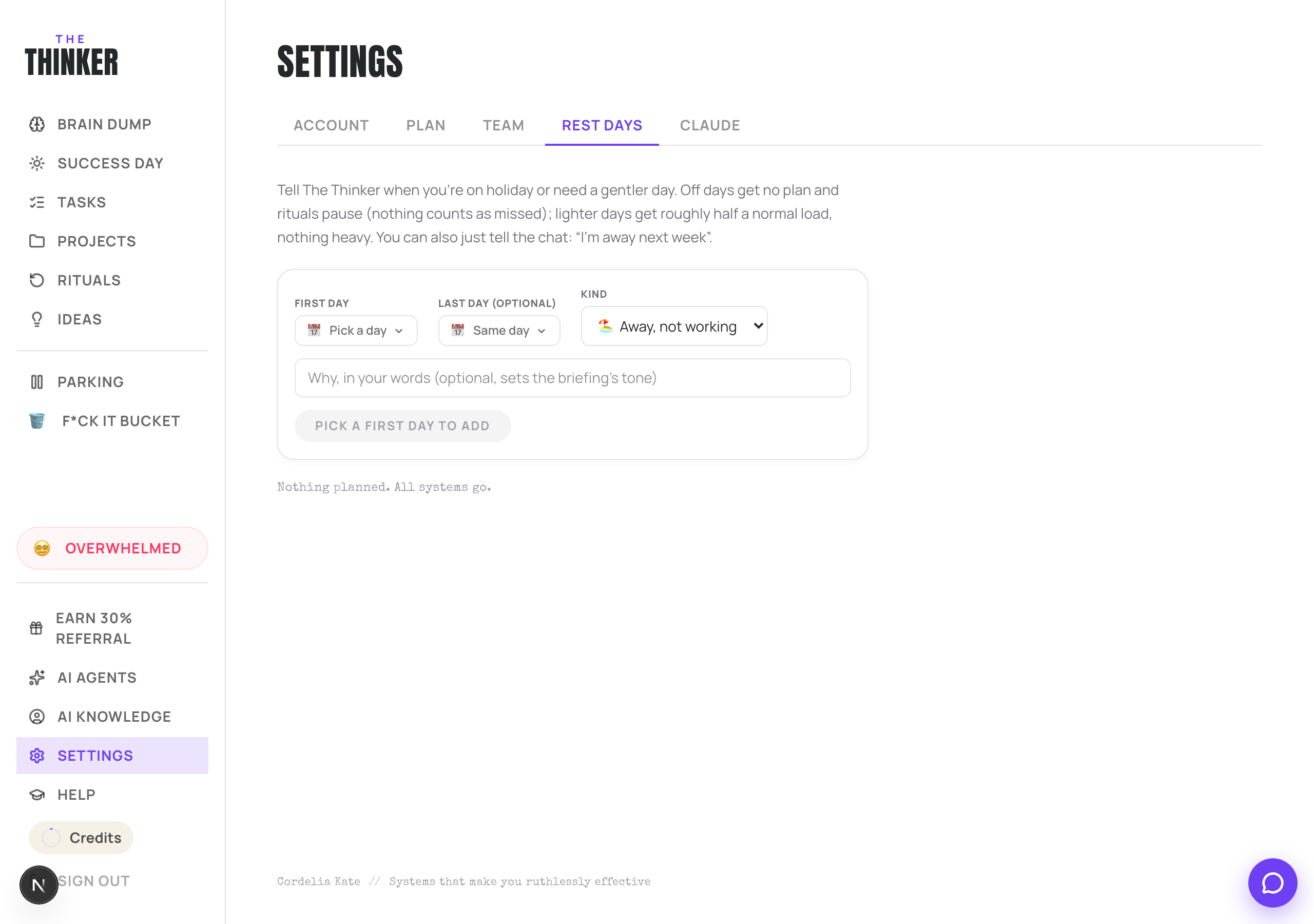
The Rest days tab is worth its own read. See the Rest days and lighter days article.
Email and password
Your account details sit at the bottom of the Account tab.
More in Set-up and help
Did that not answer it? Ask Thinker in your own words.
Ask a question